1Getting Started
1.1What Sensor Placement Does
Sensor Placement answers two questions before a gauge is bonded: how many strain rosettes does this test need, and where do they go?
It works by simulating the whole test. A linear-elastic plane finite element model of your part is solved for a family of loads the article may see. Every candidate sensor layout is then scored by running the same peridynamic strain recovery that Field Recovery will run after the test, and comparing the recovered field with the finite element field. The layout that reconstructs the field best wins.
Because the estimator being optimised is the estimator you will actually use, the error reported here is the error you should expect from the real test — not a proxy such as condition number or mode coverage.
1.2When to Use It
- Planning instrumentation for a coupon, component or full-scale test article.
- Justifying a channel count to a customer or a certification authority.
- Siting a permanent structural-health-monitoring array, which must serve loads that are not yet known.
- Checking an instrumentation plan someone else drew, by scoring it against an optimised layout of the same size.
1.3The Main Window
PDRecovery holds two workspaces that share one model. The workspace bar at the top of the window switches between them:
| Workspace | Shortcut | Purpose |
|---|---|---|
| Sensor Placement | Ctrl+Alt+P | Before the test: how many strain rosettes, and where. |
| Field Recovery | Ctrl+Alt+R | After the test: full strain, displacement and material fields from the measured strains. |
Below it, the step bar shows the six steps of the Sensor Placement workspace. Ctrl+1 to Ctrl+6 jump between them. The first three steps — Domain, Discretization, Boundary & Material — are shared with Field Recovery and edit the same project data, so work done in one workspace is immediately available in the other.
The window is split between the canvas, which draws the part, the peridynamic points, the candidate positions and the sensors, and the step panel on the right, which holds the settings and results of the active step. Every panel ends with navigation buttons to the previous and next step.
1.4Projects, Units and Undo
A project is a single .pdrx file. It stores the geometry, the peridynamic points, the boundary conditions, the nominal material, the placement settings and every optimised layout, so re-opening a project restores the whole study without re-running it.
The project carries a length unit, and every length field in the panels shows it as a suffix. Choose it once, in the Domain step, and stay with it; a DXF import reads the drawing's own unit and scales it to the project unit for you.
Undo and redo are unlimited (Ctrl+Z, Ctrl+Y) and have a history panel. Geometry edits, discretization, boundary roles and placement settings are all undoable.
2Workflow — Step by Step
The six steps run in order. Steps 1 to 3 build the model, steps 4 to 6 design the layout.
2.1Step 1 — Domain
Build the two-dimensional domain from shapes. Every shape is either a part, which adds material, or a cut-out, which removes it; the domain is the union of the parts minus the union of the cut-outs. Any shape can be suppressed without deleting it.
Drawing shapes
| Shape | Tool | How to draw it |
|---|---|---|
| Rectangle | R | Drag corner to corner. Ctrl draws from the centre, Shift keeps it square. Rotatable. |
| Circle | C | Drag from the centre to the radius. |
| Ellipse | E | Drag corner to corner of the bounding box. Rotatable. |
| Polygon | L | Click each vertex; Shift snaps to 45°. Enter, a double-click, or a click on the first vertex closes it. Backspace removes the last vertex, Esc cancels. |
Clicking without dragging opens a numeric form at that point instead. Add Shape by Coordinates (Ins) opens the same form as a panel, and keeps it open so you can enter a series of shapes.
The Select tool (S) moves shapes, resizes them with the corner handles (Ctrl resizes symmetrically, Shift keeps the aspect ratio), and rotates them with the round handle (Shift steps by 15°). A selected polygon shows a square handle at each vertex to move it, a round handle at the middle of each side to insert a vertex, and a right-click menu to delete the vertex under the cursor. Sides that would cross are refused. Any shape can be converted to a polygon, with curves becoming 64 segments.
Grid snapping (G) and object snapping (O) to centres, vertices, edge midpoints and quadrants are both available; hold Alt while dragging to suppress them.
Importing geometry
Two import routes avoid drawing altogether.
- DXF drawing (File ▸ Import DXF Drawing…, Ctrl+Shift+I). Lines, arcs, circles, ellipses, splines, polylines with bulges and block references are read from the model space. Open curves are joined end to end within a join tolerance; curves are converted to segments within a chord tolerance, with their inner vertices marked smooth so that an arc remains a single boundary edge; full circles and ellipses stay exact. Closed outlines are nested by containment, so an outline inside an odd number of others becomes a cut-out — a plate outline with holes imports as one part and its holes. The panel lists every outline with its role, type, vertex count, area and layer, previews them on the canvas, reads the drawing unit from
$INSUNITSand lets you set the scale to the project unit. The import adds to or replaces the domain as a single undo step. - CSV import and export of the shape table. Polygons list their vertices in a
verticescolumn asx y; x y; ….
The panel reports the net area, the boundary length, the number of regions and holes, and warns about cut-outs with no effect, disconnected regions and an empty domain.
2.2Step 2 — Discretization
The discretization produces the peridynamic points and their cell areas. In Sensor Placement it does double duty: the points are where the error is measured, and — for the discrete search methods — they are also the candidate sensor positions.
| Method | What it produces |
|---|---|
| Structured grid | A regular grid of square cells. Point at cell centre puts a point at the centre of every cell whose centre lies in material, with the area trimmed to the material. Centroid of material puts one point per material piece of each cell, which places a point on each side of a slit narrower than a cell. |
| Quadtree refinement | Optional refinement of the grid near cut-out boundaries or all boundaries, controlled by a number of levels and a band width in cells. |
| Rings around holes | A body-fitted mesh for circular and elliptical cut-outs: rings of four-sided cells run from the cut-out to a box snapped to the grid lines, meeting the uniform grid node for node. Set the box size, the number of rings and the growth ratio, or leave them on automatic. |
| Scattered points | A jittered grid with a reproducible seed; areas are Voronoi cells clipped to the domain. |
| Import from file | Points from CSV or whitespace text, for example finite element centroids. Choose the x, y and area columns; with no area column, areas come from clipped Voronoi cells. |
The result panel reports the number of points, the sum of the cell areas against the domain area, the smallest and largest cell, and the nearest-neighbour spacing. Points are drawn coloured by cell area, and hovering over one shows its coordinates and area.
2.3Step 3 — Boundary & Material
This step, shared with Field Recovery, says how the article is held and loaded, and what it is made of.
Edges
The boundary of the domain — outer boundaries and holes alike — is split into edges at corners and wherever it passes from one shape's outline to another's. An L-shaped part has six straight edges; a circular hole is one closed edge; an arc added as a fillet is its own edge. Each edge keeps a stable identity through moves, resizes and rotations of its shape. Select an edge on the canvas or in the edge list and give it a role:
| Role | Meaning |
|---|---|
| Supported | Displacements prescribed to zero — clamped. The reaction there is unknown. |
| Loadable | May carry a traction, normal or shear. The load model in step 4 is built on these edges. |
| Free | Always traction-free. |
Edges without a role of their own inherit the role of another piece of the same shape side — a notch that splits a side does not lose its role — and otherwise the role of the bounding-box side they lie on. By default the left side is supported and the right side loadable.
Nominal material
Set Young's modulus E, Poisson's ratio ν, and the plane hypothesis (plane stress or plane strain). The material here is nominal: Sensor Placement assumes it, and Field Recovery later identifies the real one from the measurements.
At least one edge must be marked loadable, and at least one supported, before the load model can be solved.
2.4Step 4 — Load Model
The load model says which loads the layout must cope with. A layout optimised for one load case can be poor for another, so the model is deliberately a family rather than a single case.
Each load is a traction on one loadable edge, either normal (along the outward normal, which follows a curved edge) or shear (along the tangent), varying along the edge as a Legendre polynomial. The polynomial degree sets how rich the family is:
| Degree | Loads included | Typical use |
|---|---|---|
| 0 | Uniform tractions only | A known, uniform tension or shear — the classic coupon test. |
| 1 | Uniform and linearly varying | Tension plus bending; an unknown but smooth load introduction. |
| 2 | Also quadratic | A load path whose distribution you cannot predict. |
| 3–4 | Also cubic and quartic | Monitoring arrays that must serve loads not yet defined. |
Tractions selects which components enter the model: normal and shear, normal only, or shear only. A known uniform tension, as in the published examples, is degree 0, normal only.
Every load is scaled to unit RMS strain, so all count equally in the objective and a single stiff load case cannot dominate the design.
Held-out loads
Alongside the design loads, the tool builds a set of held-out loads — one polynomial degree higher, plus localised patch loads. These are never used to design a layout. They are scored afterwards, and they tell you whether a layout has been over-fitted to the design family or is genuinely good. Watch them whenever the real load is uncertain.
Previewing
Preview Strain Fields solves the finite element model for every load and draws the selected one on the peridynamic points, as the equivalent strain or a single component. Use it as a sanity check: if a preview does not look like the test you are planning, the supports or the loadable edges are wrong, and no amount of optimisation will fix that.
2.5Step 5 — Candidates
Candidates are the positions a sensor may occupy. By default they are the peridynamic points; three constraints narrow them down to positions a technician can actually use.
| Setting | What it does | Guidance |
|---|---|---|
| Edge margin | Smallest distance from any boundary. | Roughly half the gauge length, so the rosette and its footprint fit on the material. 0 allows every point. |
| Minimum spacing | Smallest distance between two sensors. | Enough for the gauge bodies and their lead wires. 0 only forbids two sensors sharing a point. |
| Corner zones | Radius of the excluded disks at the ends of the supported edges, as a percentage of the larger side of the domain. | The strain at a clamped corner is singular, so both the measurement and the finite element field are meaningless there. Excluded points are also left out of the error. 0 excludes nothing. |
The panel reports the number of candidate positions, the total number of peridynamic points and the excluded zones with their radius, and the canvas draws them. It warns when there are fewer candidates than the sensor budget of step 6, and when the constraints have left too few candidates to work with at all.
2.6Step 6 — Optimise
This is where the layouts are designed. Layouts are optimised at N = N min, N min + step, …, N max, so the result is not a single layout but a curve of accuracy against cost.
Settings
| Setting | Meaning |
|---|---|
| Method | The search algorithm — see §3.1. |
| N min | The smallest number of sensors to optimise for. |
| N max (budget) | The largest number of sensors — your channel budget. |
| Step | The increment between them. The panel lists the resulting values of N. |
| Target error | Recommends the smallest N whose worst component error reaches this value. 0 recommends the knee of the curve instead. |
| Sensor noise | Sensor noise as a percentage of the largest strain of each component. It enters the objective and penalises layouts that amplify noise. |
| n_neighbors | The family size of the strain recovery the layout is designed for. Match it to the value you will use in Field Recovery, step 5 — the default 16 in both. |
| Search | Effort: quick (14 trials per added sensor), standard (28) or thorough (56). |
How a layout is built
- The first layout, at N min, starts from space-filling positions.
- Every later layout starts from the optimised layout of the previous N, plus the extra sensors, each added where the current error is largest — chosen from the error hot spots and a few random positions.
- A swap refinement then moves each sensor in turn to the best of the error hot spots, its neighbouring peridynamic points and a few random positions, keeping the move only if the error falls. Passes repeat until a pass moves nothing, or the pass limit is reached.
Trials are scored on a coarser quadrature of the peridynamic points for speed; the errors reported for the finished layouts use all of them. Progress, the current N and the running error are shown live, and Optimise turns into Stop while the search runs — stopping keeps the layouts finished so far.
Refining a single N
Below the results, Optimise N works on one sensor count at a time. Enter a new N and it is optimised starting from the next smaller optimised layout; enter an N that already has a layout and it receives further refinement passes. Use it to fill a gap in the curve, or to push the one layout you actually intend to build.
2.7Exporting the Sensor Plan
The Sensors box lists the coordinates of the selected layout, and the canvas draws them on the part. Export Sensor Plan… writes a CSV file with the sensor id, x and y, and empty strain columns.
That file is the bridge between the two halves of a test campaign:
- Export the plan and take it to the laboratory. The coordinates are in the project's length unit, in the project's coordinate frame.
- Bond the rosettes at those positions and run the test.
- Fill the measured strains into the empty columns.
- Switch to the Field Recovery workspace (Ctrl+Alt+R) and import the same file in step 4, Sensors & Data.
3Choosing the Settings
3.1Choosing a Search Method
Five methods are available. The first three keep sensors on peridynamic points; the last two let them take continuous coordinates anywhere in the material.
| Method | How it works | Cost | Quality |
|---|---|---|---|
| Exchange search | Every sensor is tried at many positions, and each trial is scored with the peridynamic recovery of the finite element fields — so the search optimises exactly the error that is reported. | Minutes | Strong. The dependable default. |
| POD + pivoted QR | Sensors are the pivots of a QR factorisation of the POD modes of the design-load fields, spread out to cover the domain. It optimises a linear surrogate and never solves a recovery. | Under a second | About as good as a space-filling layout. Use it to explore. |
| POD + pivoted QR, then exchange | The QR layout becomes the starting point of the exchange search. | Same as the exchange search | Usually the best of the discrete methods, at no extra cost. |
| Gauss-Newton | The 2N sensor coordinates are optimised continuously from a space-filling start. | Moderate | Slides sensors locally only; it cannot move one across the domain, so on its own it is usually a little worse than the exchange search. |
| Exchange search, then Gauss-Newton | The exchange layout is polished off the grid. | Exchange search plus a little | The best result on the validation case, by a few per cent. |
The continuous methods place sensors off the peridynamic points. That is realistic — a technician does not bond a gauge to a grid node — but it means the exported coordinates will not coincide with points, and the number of Gauss-Newton steps is set in the Advanced box.
3.2Choosing a Polynomial Degree
The degree is the single most consequential choice in the study, because it decides what "good" means.
- If the test applies a load you control and know — a uniform tension in a testing machine — use degree 0 and the matching traction component. The design family is then the real load, and the optimisation has nothing to hedge against.
- If the load introduction is imperfect, or the article is loaded through a fitting, degree 1 or 2 buys robustness cheaply.
- For monitoring, where the service load is genuinely unknown, use a higher degree and then judge the layouts by their held-out error rather than their design error.
A higher degree makes the problem harder, so the design error rises. That is not a worse layout; it is a wider question being answered.
3.3Sensor Noise and Target Error
Sensor noise is given as a percentage of the largest strain of each component. It adds a term to the objective proportional to the squared recovery weights, which penalises layouts whose reconstruction amplifies noise — the ill-conditioned clusters an error-driven search would otherwise be tempted by. Set it to the noise floor of your instrumentation relative to the strain level you expect. The reported Amplification tells you how much the layout multiplies it.
Target error drives the recommendation. Set it to the accuracy the test must deliver, and the tool recommends the smallest N whose worst component error meets it. Leave it at 0 and the recommendation is the knee of the curve — the point beyond which extra gauges stop paying for themselves.
3.4Advanced Settings
| Setting | Meaning |
|---|---|
| Optimisation passes | The largest number of passes over all sensors when a layout is refined. The search stops earlier when a pass moves nothing. |
| FE mesh size | Element size of the finite element model. 0 uses half the typical peridynamic spacing, which is a good default. |
| Worker processes | How many processes score trials in parallel. More is faster until memory bandwidth saturates. |
| Random seed | Seed of the random trial positions, so a study is reproducible. |
| Gauss-Newton steps | Number of continuous polish iterations, for the two Gauss-Newton methods. |
4Reading the Results
4.1The Error Curve
The plot at the top of the results shows the error of the optimised layout against the number of sensors, with the recommended N marked and the total optimisation time reported. Click any point on the curve, or pick a value from the N box, to load that layout: the canvas draws it, the sensor table lists it, and the statistics below update.
Read the curve for its shape, not only for its recommendation. A steep stretch means each extra gauge still buys accuracy; a flat stretch means the layout has saturated what the geometry and the load family allow, and more channels are wasted money.
4.2The Error Numbers
For the selected layout the panel reports:
| Quantity | Meaning |
|---|---|
| Errors | The error per strain component — εxx, εyy, γxy. Each is the RMS difference between the recovered and the finite element field over the peridynamic points, divided by the largest magnitude of that component, averaged over the design loads. |
| Objective | The root mean square of the component errors over all design loads, including the noise term. This is the quantity the search minimises. |
| Held-out loads | The same error, scored on loads the layout was never designed for. |
| Space-filling | The error of a farthest-point-sampling layout of the same size — the honest baseline. |
| Amplification | How much the layout multiplies sensor noise into the reconstructed field. |
| Optimisation | How far the search moved from its starting layout, and whether it converged. |
A component that nearly vanishes in a load — shear in a pure-tension case, for instance — is measured against a small floor rather than against its own tiny maximum, so it cannot dominate the objective through division by almost nothing.
4.3Held-Out Loads and the Baseline
These two numbers are the quality control of the study, and they are worth more attention than the design error.
- Held-out error close to the design error. The layout generalises; it is good for loads outside the model.
- Held-out error much worse than the design error. The layout is specialised to the design family. That is exactly right when you know the load and wrong when you do not — raise the polynomial degree and optimise again.
- Optimised error barely better than space-filling. Either the field is nearly uniform, so position hardly matters, or the constraints in step 5 have left the search no freedom. Check the candidate count.
4.4Optimisation History
The small plot below the statistics shows the error after every accepted move while that layout was optimised. A curve that has flattened means the search converged; a curve still falling at the end means more passes, or a higher effort setting, would still help.
5Worked Example
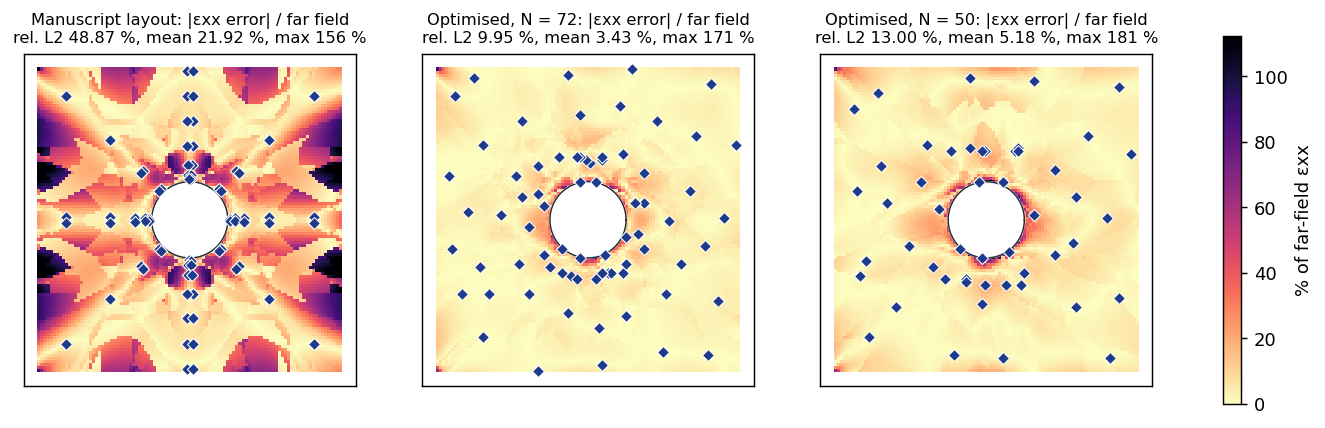
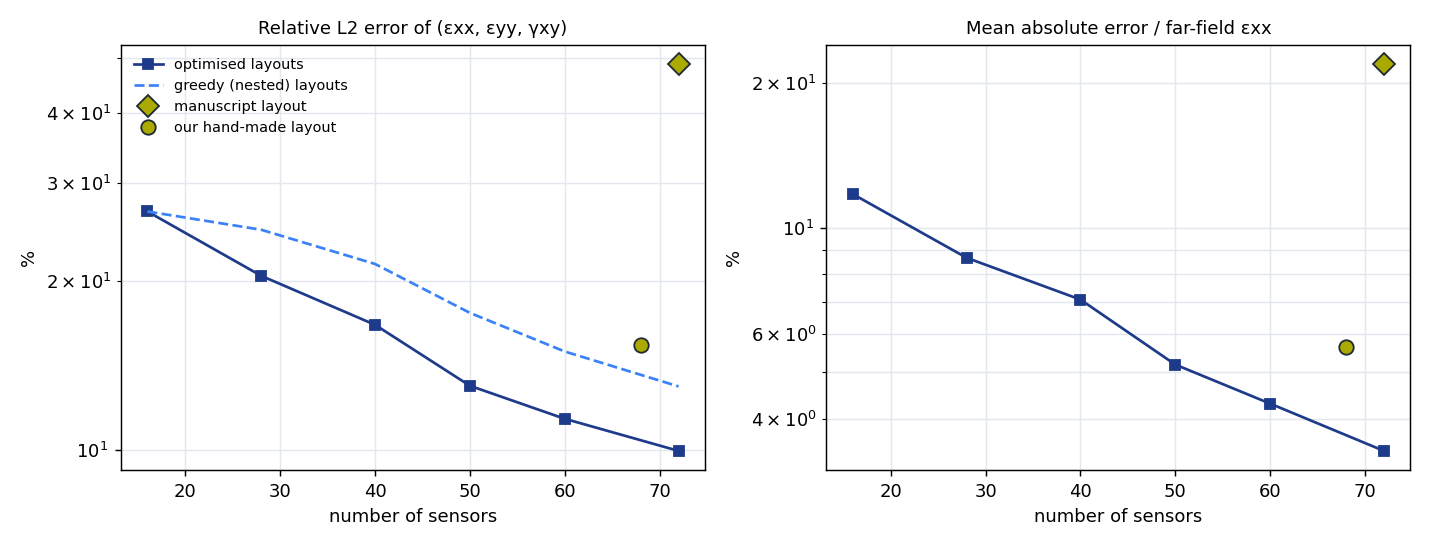
The validation case is a 4 m × 4 m plate with a central hole of radius 0.5 m, clamped on the left edge and loaded in uniform tension on the right, discretized at Δx = 0.04 m. The design load is the known tension alone: degree 0, normal only. Layouts were optimised for 16, 28, 40, 50, 60 and 72 sensors, and then scored against a finite element reference field with the same peridynamic recovery (n_neighbors = 16) used for every other layout.
| Layout | Sensors | Relative L2 strain error | Error near the hole |
|---|---|---|---|
| Published layout | 72 | 48.9 % | 41.4 % |
| Hand-made layout | 68 | 15.4 % | 28.2 % |
| Optimised | 40 | 16.7 % | 27.1 % |
| Optimised | 50 | 13.0 % | 23.0 % |
| Optimised | 72 | 9.9 % | 18.0 % |
Two conclusions carry over to real tests. At the same gauge count, optimisation was worth roughly a factor of five against the published layout. And accuracy better than a carefully hand-made 68-sensor layout was reached with 50 optimised sensors — a 26 % reduction in channels for a better result.
6Tips and Troubleshooting
6.1How Long It Takes
Optimisation time grows with the number of peridynamic points, the number of loads in the model, the number of values of N, and the effort setting. The dominant cost is scoring trial layouts, which is memory-bound, so extra worker processes help only up to a point.
- To explore quickly, use POD + pivoted QR, a coarse grid and a wide step. Seconds.
- For the study you will report, use the exchange search on the grid you intend to use for Field Recovery. Minutes.
- Refine only the layout you will build, with Optimise N and a thorough search.
The search can be stopped at any time; the layouts finished so far are kept, and are saved in the project.
6.2Common Problems
| Symptom | Cause and remedy |
|---|---|
| "Mark at least one edge as loadable." | No edge carries load, so there is no load model. Go back to step 3 and give at least one edge the loadable role. |
| "Discretize the domain first." | Step 2 has not been run, or the geometry changed after it was. Regenerate the points. |
| "Too few candidate positions." | The edge margin, the minimum spacing or the corner zones have eliminated almost everything. Reduce them in step 5, or refine the discretization. |
| "Fewer candidates than N max." | Your budget exceeds the positions available. Lower N max, relax the constraints, or use a finer grid. |
| "The excluded zones cover the whole domain." | The corner-zone radius is too large for the part. It is a percentage of the larger side of the domain, so a few per cent is usually enough. |
| Optimised error no better than space-filling | Either the strain field is nearly uniform, in which case position genuinely does not matter much, or the constraints leave no freedom. Check the candidate count and the preview of the load fields. |
| Held-out error far worse than the design error | The layout is over-fitted to the design family. Raise the polynomial degree, or include shear tractions, and optimise again. |
| Layouts marked out of date | The geometry, the points or the boundary conditions changed after the optimisation. Run it again. |
| Preview does not look like the test | The supports or the loadable edges are wrong. Fix them in step 3 — every later number depends on them. |
7Reference
7.1Mouse and Keyboard
| Input | Action |
|---|---|
| Wheel | Zoom about the cursor |
| Middle drag, or Space + drag | Pan |
| Double-click an empty area | Fit the view |
| S / H | Select tool / Pan tool |
| R / C / E / L | Rectangle / Circle / Ellipse / Polygon tool |
| P / X | New shapes are Parts / Cut-outs |
| Ins | Add shape by coordinates |
| F | Fit the view |
| G / O | Toggle grid snapping / object snapping |
| Alt while dragging | Temporarily disable snapping |
| Arrows | Nudge the selection (Shift ×10, Alt ÷10) |
| Del, Ctrl+D | Delete, duplicate |
| Ctrl+Z, Ctrl+Y | Undo, redo |
| Ctrl+Alt+P / Ctrl+Alt+R | Sensor Placement / Field Recovery workspace |
| Ctrl+1 … Ctrl+6 | Steps of the Sensor Placement workspace |
| Ctrl+Shift+I | Import a DXF drawing |
| Ctrl+G | Generate the peridynamic points |
| Ctrl+Shift+O | Optimise the sensor layout |
| Ctrl+E | Export the canvas as an image |
| F1 | Mouse and keyboard reference |
7.2Glossary
| Term | Meaning |
|---|---|
| Candidate | A position a sensor is allowed to occupy, after the margin, spacing and exclusion-zone constraints. |
| Design load | A load in the model the layout is optimised for. |
| Held-out load | A load deliberately kept out of the design, used only to test how a layout generalises. |
| Exchange search | An optimisation that repeatedly moves one sensor at a time to the best position found, scoring the true objective for every trial. |
| POD | Proper orthogonal decomposition — the dominant modes of the family of strain fields. |
| Pivoted QR | A matrix factorisation whose pivots identify the most informative positions; here used as a fast surrogate for the real objective. |
| Gauss-Newton polish | A continuous optimisation of the sensor coordinates, letting them leave the peridynamic points. |
| Space-filling layout | A layout from farthest-point sampling, spread as evenly as possible. The baseline every optimised layout is compared against. |
| Amplification | The factor by which a layout's reconstruction multiplies sensor noise. |
| Knee | The point on the error curve beyond which extra sensors buy little accuracy. |
| n_neighbors | The family size of the peridynamic strain recovery: how many nearest sensors each point uses. |
| Sensor plan | The exported CSV of the chosen layout, with empty strain columns to fill in after the test. |