1Getting Started
1.1What Field Recovery Does
A strain gauge measures one point. A structure fails somewhere between the gauges. Field Recovery closes that gap: from a few dozen discrete readings it reconstructs continuous strain, displacement and stress fields over the whole part, including around the holes, notches and slits where the gradients matter most, and it characterises the elastic constants from the same data.
The engine is the Peridynamic Differential Operator (PDDO), a non-local, mesh-free framework that integrates over a finite horizon instead of differencing neighbouring points. It needs no finite element model of the part, no material properties as input, and no expert interpolation of the gauge readings. Because the domain is defined analytically and every sensor family is filtered by line of sight, no data is ever blended across a cut-out.
1.2What You Need
- The geometry of the part, as a 2D outline — drawn from primitives, or imported from a DXF drawing.
- The sensor coordinates and the measured strains, as a CSV or text file. Rosettes measuring εxx, εyy and γxy are the usual case.
- For material characterisation only: the measured load resultant, the specimen thickness, and which edges were supported and loaded.
1.3The Main Window
PDRecovery holds two workspaces that share one model. The workspace bar at the top switches between them: Sensor Placement (Ctrl+Alt+P), used before a test to design the gauge layout, and Field Recovery (Ctrl+Alt+R), described here.
Below it, the step bar shows the steps of Field Recovery. Ctrl+1 to Ctrl+7 jump between them. The first three — Domain, Discretization, Boundary & Material — are shared with Sensor Placement and edit the same project data.
| Step | Name | What it does |
|---|---|---|
| 1 | Domain | Define the 2D domain from parts and cut-outs. |
| 2 | Discretization | Generate peridynamic points and cell areas. |
| 3 | Boundary & Material | Supported and loadable edges, nominal material, plane hypothesis. |
| 4 | Sensors & Data | Place strain sensors and import the measured strains. |
| 5 | Strain Recovery | Estimate the strains at every unmeasured point. |
| 6 | Displacement | Construct the displacement field by peridynamic least squares. |
| 7 | Material ID | Characterise E and ν by the virtual fields method, and compute the stresses. |
The window is split between the canvas, which draws the part, the points, the sensors and the result fields, and the step panel on the right, which holds the settings and results of the active step. Every panel ends with navigation buttons to the previous and next step.
1.4Projects, Units and Undo
A project is a single .pdrx file holding the geometry, the peridynamic points, the boundary conditions, the sensors and their data, and every computed result. Re-opening it restores the whole analysis without recomputing anything.
The project carries a length unit, shown as a suffix on every length field. Strain data may be imported in strain, µε or per cent, and is converted on import.
Undo and redo are unlimited (Ctrl+Z, Ctrl+Y) with a history panel, and cover geometry edits, discretization, sensor edits and every computed result. Light and dark themes are available, and the canvas exports to PNG or SVG (Ctrl+E).
2Workflow — Step by Step
2.1Step 1 — Domain
Build the two-dimensional domain from shapes. Every shape is either a part, which adds material, or a cut-out, which removes it; the domain is the union of the parts minus the union of the cut-outs. Any shape can be suppressed without being deleted.
Getting the cut-outs right matters more here than it might appear. They are not cosmetic: the recovery families are filtered by line of sight through them, so a hole that is present in the model stops strain data being blended from one side of it to the other, and a hole that is missing lets it through.
Drawing shapes
| Shape | Tool | How to draw it |
|---|---|---|
| Rectangle | R | Drag corner to corner. Ctrl draws from the centre, Shift keeps it square. Rotatable. |
| Circle | C | Drag from the centre to the radius. |
| Ellipse | E | Drag corner to corner of the bounding box. Rotatable. |
| Polygon | L | Click each vertex; Shift snaps to 45°. Enter, a double-click, or a click on the first vertex closes it. Backspace removes the last vertex, Esc cancels. |
Clicking without dragging opens a numeric form at that point. Add Shape by Coordinates (Ins) opens the same form as a panel and keeps it open for a series of shapes. The Select tool (S) moves shapes, resizes them with the corner handles (Ctrl symmetric, Shift keeps aspect) and rotates them with the round handle (Shift steps by 15°).
A selected polygon shows a square handle at each vertex to move it, a round handle at the middle of each side to insert a vertex, and a right-click menu to delete the vertex under the cursor. Sides that would cross are refused. Any shape converts to a polygon, with curves becoming 64 segments — useful for turning an imported curve into something you can edit vertex by vertex.
Grid snapping (G) and object snapping (O) to centres, vertices, edge midpoints and quadrants are available; hold Alt while dragging to suppress them. The Properties panel edits the selected shape numerically, and polygons get an editable table of vertex coordinates. A spreadsheet-style Geometry Table lists every shape.
Importing geometry
- DXF drawing (File ▸ Import DXF Drawing…, Ctrl+Shift+I). Lines, arcs, circles, ellipses, splines, polylines with bulges and block references are read from the model space. Open curves are joined end to end within a join tolerance; curves are converted to segments within a chord tolerance, with their inner vertices marked smooth so that an arc stays a single boundary edge; full circles and ellipses stay exact. Closed outlines are nested by containment, so an outline inside an odd number of others becomes a cut-out — a plate outline with holes imports as one part and its holes. The panel lists every outline with its role, type, vertex count, area and layer, previews them on the canvas, reads the drawing unit from
$INSUNITSand lets you set the scale to the project unit. The import adds to or replaces the domain in one undo step. - CSV import and export of the shape table. Polygons list their vertices in a
verticescolumn asx y; x y; ….
The panel reports net area, boundary length, the number of regions and holes, and warns about cut-outs with no effect, disconnected regions and an empty domain. Coordinates are engineering coordinates with y up; angles are counter-clockwise in degrees.
2.2Step 2 — Discretization
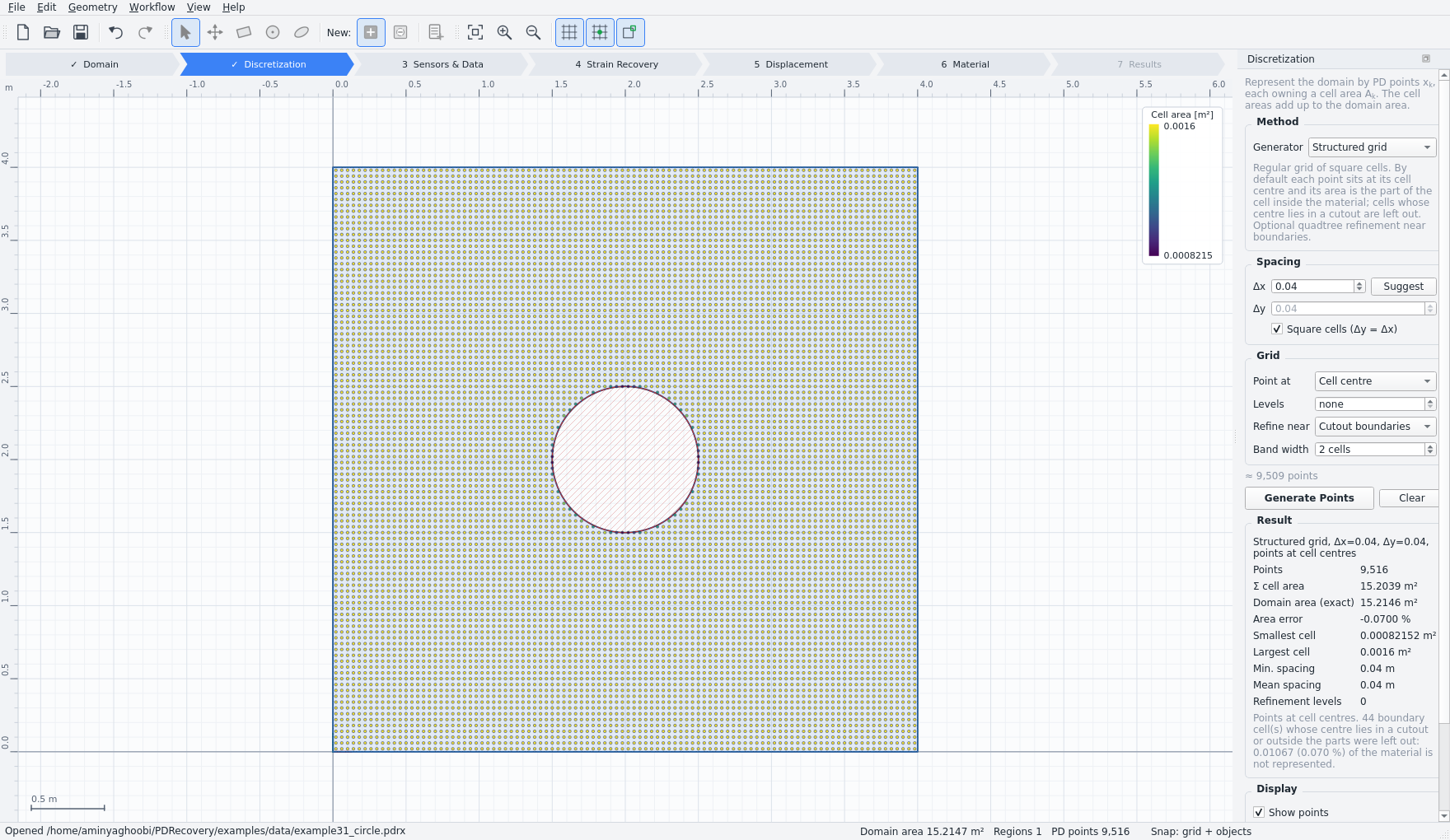
The discretization produces the peridynamic points xk and their cell areas Ak, which add up to the domain area. These are the points at which every field is reconstructed.
| Method | What it produces |
|---|---|
| Structured grid | A regular grid of square cells. Point at cell centre places a point at the centre of every cell whose centre lies in material, with the area trimmed to the material; cells whose centre falls in a cut-out are dropped, and the unrepresented material is reported. Centroid of material places one point per material piece of each cell, so a cell split by a slit narrower than the spacing gets a point on each side. |
| Quadtree refinement | Optional refinement near cut-out boundaries or all boundaries, set by a number of levels and a band width in cells. |
| Rings around holes | A body-fitted mesh for circular and elliptical cut-outs: rings of four-sided cells run from the cut-out to a box snapped to the grid lines and meet the uniform grid node for node. Box size, ring count and growth ratio are automatic unless you set them. The first ring is trimmed exactly to the curved cut-out. |
| Scattered points | A jittered grid with a reproducible seed; areas are Voronoi cells clipped to the domain. |
| Import from file | Points from CSV or whitespace text, for example finite element centroids. Choose the x, y and area columns; with no area column, areas come from clipped Voronoi cells. |
The result panel reports the number of points, the sum of the cell areas against the domain area, the smallest and largest cell, and the nearest-neighbour spacing. Points are drawn coloured by cell area, on a logarithmic scale for refined grids; cell outlines can be shown, and hovering over a point reveals its coordinates and area. Export Points writes id x y area.
2.3Step 3 — Boundary & Material
This step, shared with Sensor Placement, records how the article was held and loaded. Field Recovery uses it twice: the supported edges become the clamped edges of the displacement reconstruction, and the supported and loaded edges define which virtual fields are admissible in material characterisation.
The boundary is split into edges at corners and wherever it passes from one shape's outline to another's. Each edge keeps a stable identity through moves, resizes and rotations. Select an edge on the canvas or in the list and give it a role:
| Role | Meaning in Field Recovery |
|---|---|
| Supported | Clamped: u = v = 0. Fixes the rigid-body motion the strains cannot determine, and is where the reaction is unknown, so virtual fields must vanish there. |
| Loadable | May carry a traction. The edge where the measured load resultant was applied is chosen from these in step 7. |
| Free | Traction-free. |
Edges with no role of their own inherit the role of another piece of the same shape side, and otherwise the role of the bounding-box side they lie on; by default left is supported and right is loadable.
The nominal material — Young's modulus E, Poisson's ratio ν and the plane hypothesis (plane stress or plane strain) — is an assumption, not an input to the reconstruction. Strain recovery and displacement reconstruction never use E or ν. Step 7 identifies the real values from the measurements; the plane hypothesis, however, does enter that identification, so set it correctly.
2.4Step 4 — Sensors & Data
Use Import Sensor Data… (Ctrl+I) to load a CSV or whitespace text file of sensor positions and measured strains.
The import dialog
The dialog previews the file and detects the columns from its header — id,x,y,exx,eyy,gxy and variants such as LE11 or eps_xy are recognised. Any mapping can be corrected by hand.
| Option | Meaning |
|---|---|
| Strain unit | strain, µε or per cent. Converted on import. |
| Shear convention | Internally the shear strain is always the engineering γxy = ∂u/∂y + ∂v/∂x. Tensor εxy data is converted with γxy = 2 εxy. |
Assignment to peridynamic points
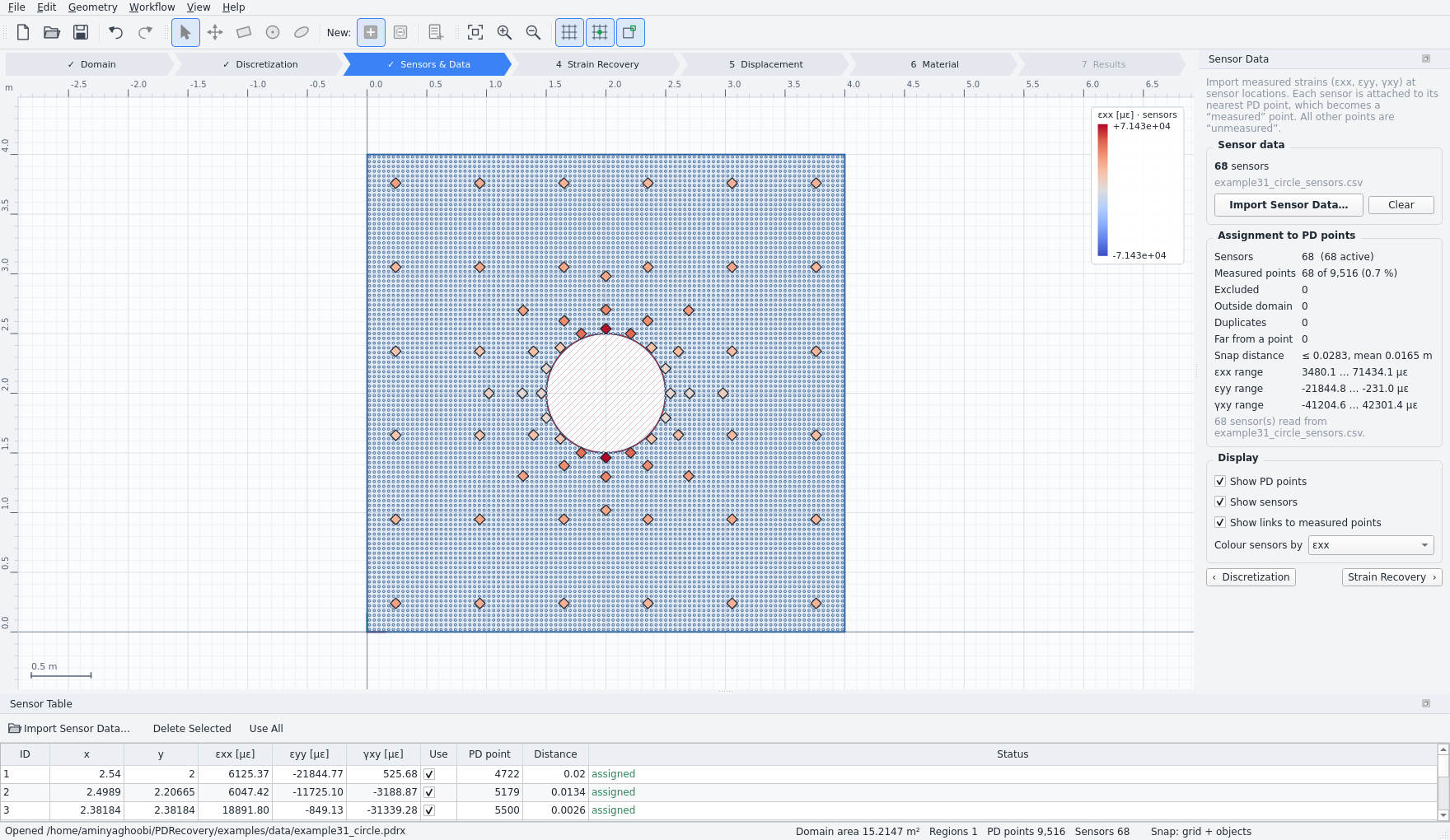
Each sensor is attached to its nearest peridynamic point, which becomes a measured point. A sensor is ignored if it lies outside the domain, or if another sensor is closer to the same point. A sensor more than 0.75 × the cell size from its point is flagged — usually a sign that the coordinate frame of the data does not match the model, or that the grid is too coarse for the layout.
Checking the data
Sensors are drawn as diamonds, either uniform yellow or coloured by εxx, εyy or γxy on a diverging scale, each linked by a line to its measured point. Hovering over a sensor shows its values. The Sensor Table lists every sensor with its assignment, and lets you exclude or delete individual sensors; these edits are undoable.
Colour the sensors by component before going further. A single gauge with a sign error, a dead channel or a decimal-point slip stands out immediately here, and is very hard to see once it has been smeared across a reconstructed field.
2.5Step 5 — Strain Recovery
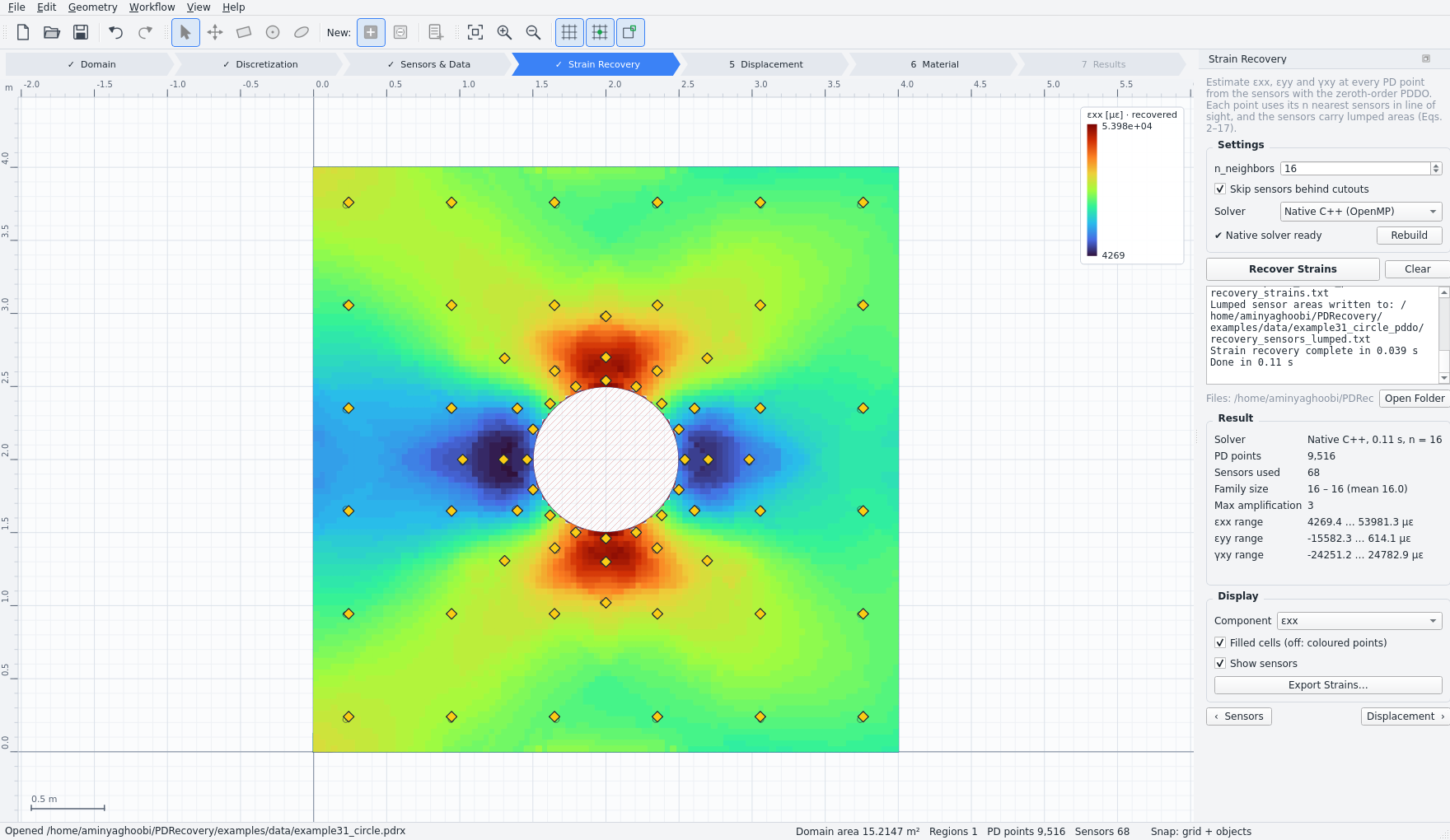
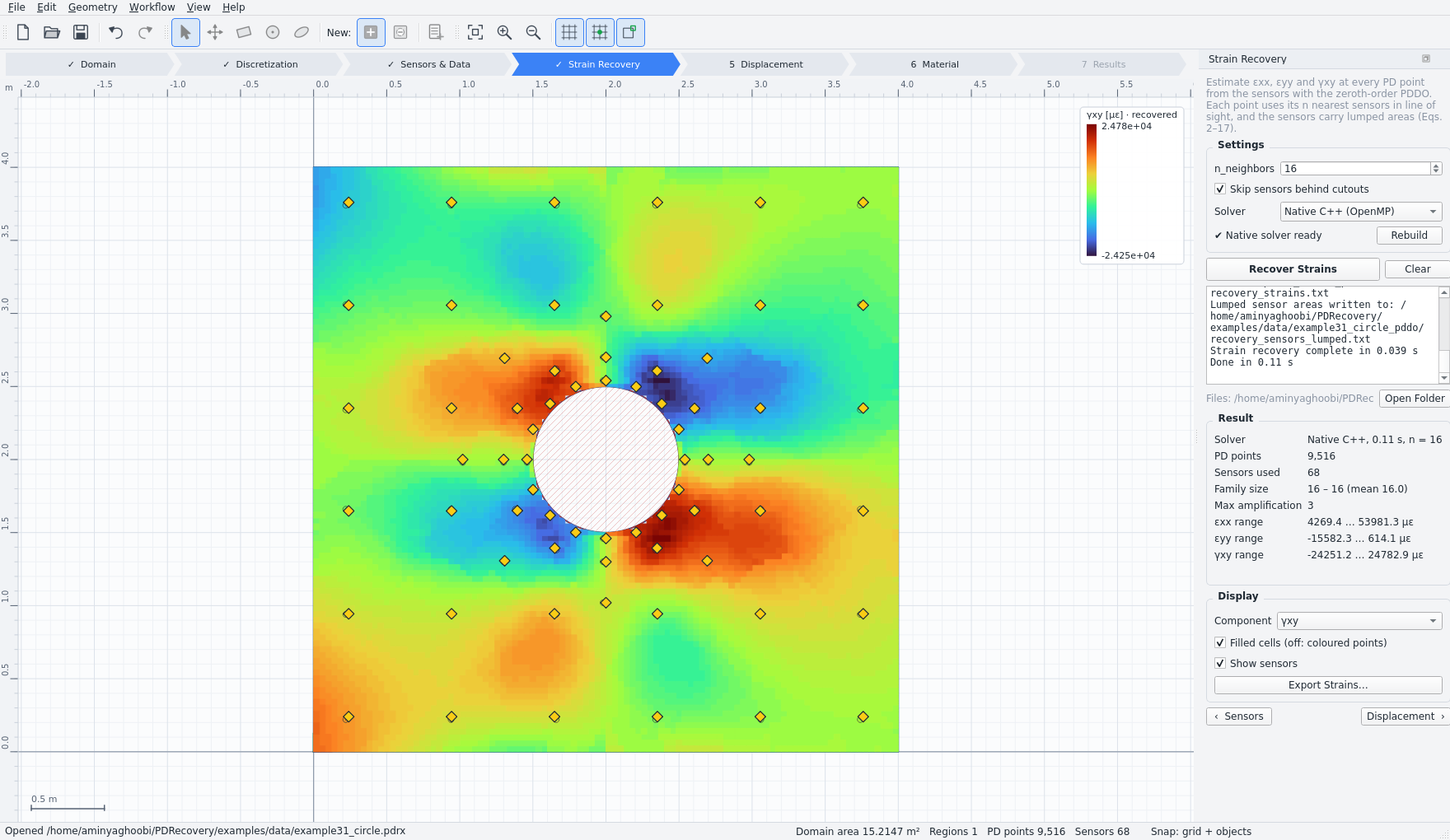
Click Recover Strains (Ctrl+R). The step estimates εxx, εyy and γxy at every peridynamic point from the sensors, using the zeroth-order PDDO.
| Setting | Meaning |
|---|---|
| n_neighbors | The family size: how many nearest sensors each point uses. The default is 16, the most robust value on the validation data. |
| Line of sight | Families never reach through a cut-out, so no data crosses a hole, notch or slit. |
| Solver | Native C++ with OpenMP, or the Python reference implementation. Both give the same results to machine precision. |
The result is drawn as filled cells coloured by component with the sensors on top; hovering over a point shows its recovered strains. The panel reports the family size, the family radius and the noise amplification at every point — the diagnostics that tell you where the reconstruction is well supported and where it is extrapolating.
Export Strains writes a CSV file. The result is undoable, saved in the project, and flagged out of date when the points or the sensors change.
2.6Step 6 — Displacement
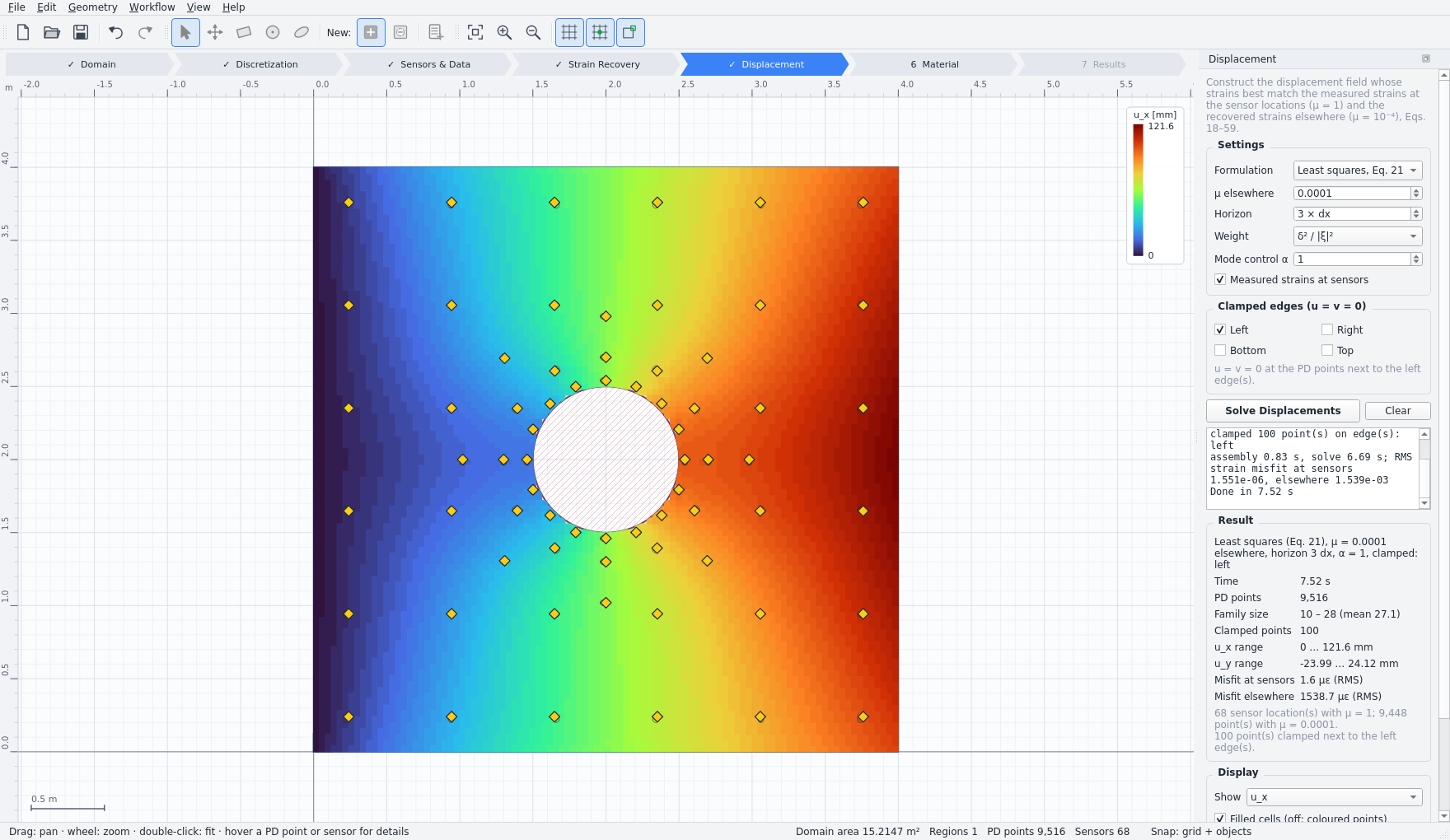
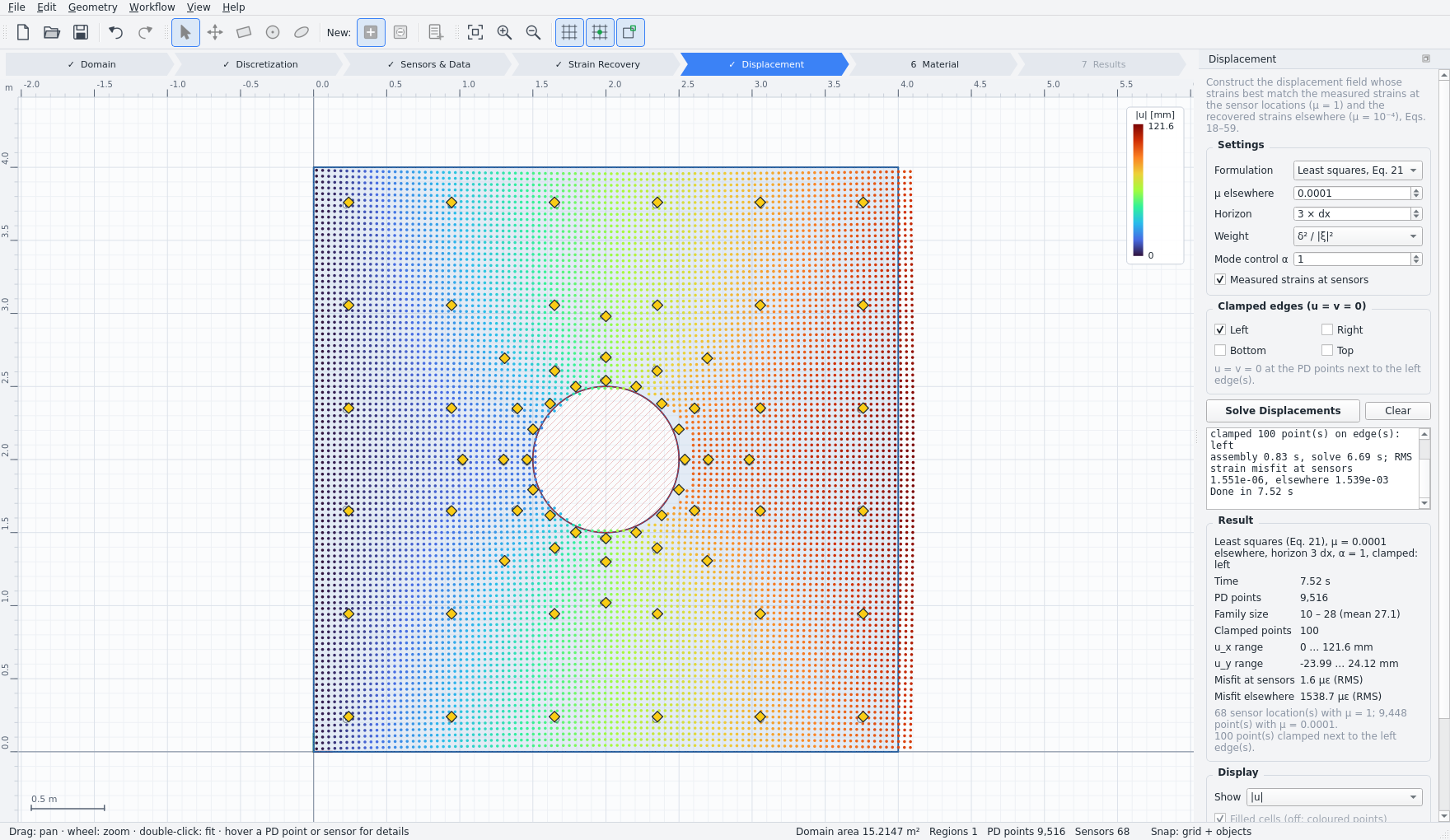
Click Solve Displacements (Ctrl+Shift+D). The step constructs the displacement field whose peridynamic strains best match the known strains — the measured values at the sensor locations, and the recovered values everywhere else.
| Setting | Meaning and guidance |
|---|---|
| Formulation | Least squares (default) minimises the error exactly and gives a positive semi-definite system whose only zero modes are rigid-body motion. Product functions reproduces the published formulation, for comparison. |
| μ elsewhere | The weight given to the recovered strains relative to the measured ones. The default 10⁻⁴ trusts the measurements and lets the recovered field fill in between them. |
| Horizon | The family radius, by default three times the point spacing. Every family holds the points within it that are in line of sight — 28 in the interior of a uniform grid, 17 at an edge, 10 at a corner. |
| Weight | The peridynamic weight function: δ²/|ξ|² (default) or a Gaussian. |
| Mode control α | Zero-energy-mode control, default 1. See §3.3. Anything between 0.3 and 10 gives the same answer; 0 turns it off. |
| Clamped edges | Which edges are held at u = v = 0, taken from step 3. With no edge clamped, rigid-body motion is removed instead. |
The display shows ux, uy, |u| or the calculated strains, as filled cells or points. A deformed-shape view applies an automatic magnification, and hovering over a point shows its values. Export Displacements writes a CSV file.
2.7Step 7 — Material Characterisation
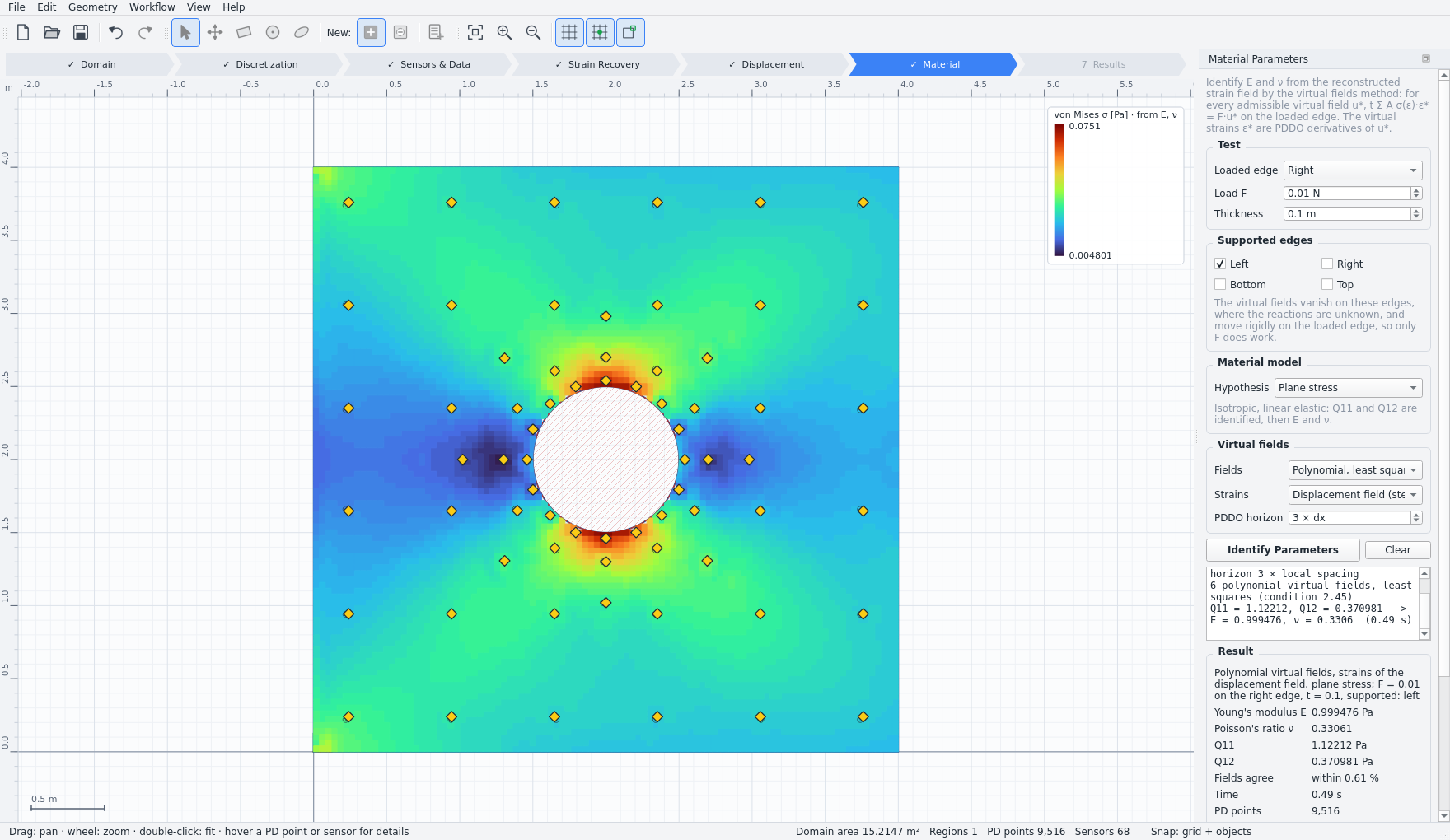
Click Identify Parameters (Ctrl+Shift+M). The step characterises the elastic constants from the reconstructed field by the virtual fields method, and then computes the stresses.
Inputs
| Input | Meaning |
|---|---|
| Loaded edge | The edge that carried the measured load, chosen from the loadable edges. |
| Load F | The measured load resultant on that edge, tension positive. This is the only force information the method needs. |
| Thickness | The specimen thickness. |
| Supports and material model | The supported edges and the plane hypothesis, from step 3. |
| Fields | Polynomial, least squares or Optimised, least noise — see below. |
| Virtual mesh | For optimised fields: the number of elements along the longer side of the coarse virtual mesh. |
| Strains | The strains of the step 6 displacement field (default), or the step 5 recovered strains. |
| PDDO horizon | The horizon used to differentiate the virtual displacements. |
Two families of virtual fields
Polynomial, least squares uses six admissible fields solved by least squares. They need one supported edge opposite the loaded one. On a field in perfect equilibrium all six agree exactly, so their disagreement — reported as Consistency — measures how far your reconstruction is from equilibrium. This is the most useful diagnostic in the whole workflow, because it needs no reference solution: about 0.5 % on a good reconstruction, and 5–8 % on a poor one.
Optimised, least noise uses piecewise-bilinear fields on a coarse virtual mesh. For each parameter, the special field with the least sensitivity to strain noise is found and the stiffness ratio is iterated. It works with any supported edges that do not touch the loaded edge, and the panel reports the noise sensitivity η, where the scatter in the identified stiffness is η times the strain-noise standard deviation.
Results
The panel reports E and ν with the consistency or noise-sensitivity measure. The canvas then displays σxx, σyy, τxy and von Mises stress from the identified law, and the optimised virtual fields can be displayed as well. Export Results writes E, ν and the stresses at every peridynamic point.
3The Methods
This section explains what the solvers do. It is not required reading to run an analysis, but it is what you will want when a reconstruction behaves unexpectedly, or when a reviewer asks how the numbers were produced.
3.1Zeroth-Order PDDO Strain Recovery
Each sensor is attached to its nearest peridynamic point and receives a lumped area from inverse-distance shares of the surrounding cells, so that a dense cluster of gauges does not count more heavily than its share of the material. The zeroth-order PDDO then estimates each strain component at every point as a weighted sum over the nearest sensors in line of sight, using a quadratic basis with Gaussian weights.
Two safeguards keep the estimator well behaved. The polynomial basis is written in ξ/δ, which gives the same result with a far better conditioned matrix. And a family whose sensors happen to lie almost on a single ring or curve makes the quadratic fit singular — such families are enlarged automatically until the noise amplification falls below a bound, so the reconstruction stays stable wherever the sensors happen to fall.
3.2Least-Squares Displacement
The displacement field minimises the weighted error between the strains calculated from it by the peridynamic operator and the known strains, with weight μ = 1 at the sensor locations and μ = 10⁻⁴ elsewhere. Setting the first variation to zero gives a linear system, solved once.
Strains do not determine rigid-body motion, so the solver either clamps the supported edges or removes the rigid-body modes explicitly. In the default least-squares formulation the system is positive semi-definite and its only zero modes are exactly those rigid-body motions.
3.3Zero-Energy-Mode Control
Peridynamic derivatives average over a family of about 28 points, so they barely see a displacement field that alternates from point to point. Such grid-scale modes sit at the very bottom of the system's spectrum — around 10⁻⁷ of the largest eigenvalue on the validation data — and measurement noise excites them. Left alone, the vertical displacement came out about 30 times rougher than the reference, as a visible point-to-point sawtooth.
The solver therefore adds a penalty on the difference between each family's own quadratic reconstruction at a point and the value stored there. That difference is zero for every field the peridynamic basis can represent, so only the unrepresentable wiggle is penalised: the penalty does not smooth the field itself. The scaling comes from the mean diagonals of the two matrices, which makes α dimensionless and unaffected by a uniform rescaling of the weights.
Two checks confirm it corrects an artefact rather than biasing the result. On an exactly quadratic displacement field the reconstruction stays exact to 10⁻⁸ at the default α. And fed exact reference strains, it halves the vertical displacement error, from 0.80 % to 0.33 %, with the roughness dropping to that of the reference field itself.
3.4The Virtual Fields Method
The elastic constants follow from the principle of virtual work, written over the peridynamic points with their cell areas: for any admissible virtual displacement field, the internal virtual work of the stresses equals the external virtual work of the load.
A field is admissible when it is zero on the supported edges, where the reactions are unknown, and moves rigidly on the loaded edge, so that only the measured load resultant does work. For an isotropic linear elastic solid the stress is a linear combination of two plane stiffnesses, so each admissible field gives one linear equation in them, and E and ν follow for plane stress or plane strain.
The virtual strains are peridynamic derivatives of the virtual displacements, taken with the same operator that differentiates the reconstruction. That is what makes the method consistent here: the same nonlocal operator acts on the measurement and on the test function, and with its quadratic basis it differentiates the quadratic virtual fields exactly.
4Results and Export
4.1Working with the Canvas
- The wheel zooms about the cursor; a middle drag, or Space and drag, pans; a double-click on empty space or F fits the view.
- Hovering over a point reads out its values — coordinates, area, strains, displacements or stresses, depending on the step.
- Fields are drawn as filled cells or as points, with a colour scale per component and line profiles along a cut.
- The deformed-shape view magnifies automatically so the deformation is visible whatever its true scale.
- Ctrl+E exports the current canvas as PNG or SVG, for a report.
4.2What You Can Export
| Step | Export | Contents |
|---|---|---|
| 2 | Export Points | id x y area for every peridynamic point. |
| 5 | Export Strains | The recovered εxx, εyy, γxy at every point, as CSV. |
| 6 | Export Displacements | ux and uy at every point, as CSV. |
| 7 | Export Results | E, ν, and the stresses at every point, as CSV. |
| any | Export Image | The canvas as PNG or SVG. |
The exported fields are ordinary CSV, ready for downstream fatigue, fracture or certification work without an intermediate conversion step.
4.3Solvers and Solver Files
Strain recovery runs either in a native C++ solver parallelised with OpenMP, or in a NumPy reference implementation. The reference implementation is the fallback when no compiler is available, and a cross-check otherwise: the two agree to machine precision on every validation case. Build Solver in the Strain Recovery panel compiles the native solver.
The solver's input and output files are written to a <project>_pddo/ folder next to the project file; Open Folder opens it. Both solvers also run standalone from the command line, so a study can be scripted outside the interface.
5Validated Accuracy
The full chain — sensors, strain recovery, displacement, material characterisation — is validated against finite element reference solutions for a square plate under tension with a circular hole, an inclined elliptical hole, and a slit. Errors are the relative RMS over every peridynamic point.
| Case | Sensors | Strain error | ux | uy |
|---|---|---|---|---|
| Circular cut-out | 68 | 2.9 – 6.2 % | 0.8 % | 3.8 % |
| Elliptical cut-out | 82 | 3.6 – 5.6 % | 1.1 % | 2.1 % |
| Slit | 42 | 5.1 – 8.0 % | 4.5 % | 4.3 % |
For material characterisation, fed the exact reference strains the method recovers the constants essentially exactly (E within 0.1 %, ν within 0.1 %). Fed reconstructed fields, the accuracy follows the reconstruction: E within 0.1 to 8.2 % and ν within 0.8 to 12.2 %. In every case the consistency measure correctly flagged the poor reconstructions — about 0.5 % for the good layouts against 5–8 % for the poor ones — without any reference to compare against.
The full comparison is published as a validation case.
6Tips and Troubleshooting
6.1Choosing n_neighbors
The family size governs the trade-off every sparse reconstruction faces. A small family follows sharp gradients but is sensitive to noise and to an unlucky arrangement of sensors; a large family is smooth and stable but blurs a concentration. The default of 16 was the most robust choice across the validation cases, and is the right starting point.
Judge a change by the reported noise amplification and by the consistency measure of step 7, not by how pleasing the field looks. And if the layout was designed in Sensor Placement, use the same value there and here, since that is the estimator the layout was optimised for.
6.2Judging a Reconstruction
In a real test there is no reference field to compare against. Four indicators substitute for one:
- Consistency in step 7. Six virtual fields that would agree exactly on a field in equilibrium; their spread is a direct measure of how far the reconstruction is from equilibrium. Roughly 0.5 % is good; several per cent is a warning.
- Noise amplification in step 5, point by point. It shows where a family was badly arranged, which is usually where the reconstruction is least trustworthy.
- Family size and radius. A family that had to be enlarged, or one whose radius is much larger than its neighbours', marks a region the sensors do not really cover.
- The identified constants themselves. If E or ν comes out far from what the material plausibly is, the reconstruction — or the load, thickness or supports you entered — is wrong.
6.3Common Problems
| Symptom | Cause and remedy |
|---|---|
| Sensors flagged as far from their point | The data is more than 0.75 × the cell size from the nearest point. Check that the coordinate frame of the file matches the model, and refine the discretization if the grid is too coarse for the layout. |
| Sensors ignored on import | They fall outside the domain, or two sensors compete for the same point. Check the geometry and the coordinate frame; refine the grid if two gauges are genuinely closer together than the point spacing. |
| Strain magnitudes wrong by 10⁶ or 100 | The wrong strain unit on import. Re-import as µε or per cent. |
| Shear strain wrong by a factor of two | Tensor rather than engineering shear. Set the shear convention on import. |
| Strain blended across a hole | The cut-out is missing from the domain. Line of sight can only respect geometry that is modelled. |
| Point-to-point sawtooth in the displacement | Zero-energy modes excited by noise. Leave the mode control α at its default of 1; check it has not been set to 0. |
| Displacement field drifts or is offset | No edge is clamped, so only the rigid-body modes were removed. Mark the supported edges in step 3. |
| Consistency of several per cent in step 7 | The reconstruction is not in equilibrium. Usually too few sensors, or a poor layout, in the region that dominates the virtual work — not a fault of the identification itself. |
| Identification refuses to run | Polynomial fields need one supported edge opposite the loaded one; optimised fields need supports that do not touch the loaded edge. Check the edge roles in step 3. |
| E plausible but ν far off | Typically a reconstruction that is good in the loading direction and poor transversely — too few sensors resolving εyy. |
| Results marked out of date | Something upstream changed. Recompute from the first step marked out of date onward. |
7Reference
7.1Mouse and Keyboard
| Input | Action |
|---|---|
| Wheel | Zoom about the cursor |
| Middle drag, or Space + drag | Pan |
| Double-click an empty area | Fit the view |
| S / H | Select tool / Pan tool |
| R / C / E / L | Rectangle / Circle / Ellipse / Polygon tool |
| P / X | New shapes are Parts / Cut-outs |
| Ins | Add shape by coordinates |
| F | Fit the view |
| G / O | Toggle grid snapping / object snapping |
| Alt while dragging | Temporarily disable snapping |
| Arrows | Nudge the selection (Shift ×10, Alt ÷10) |
| Del, Ctrl+D | Delete, duplicate |
| Ctrl+Z, Ctrl+Y | Undo, redo |
| Ctrl+Alt+R / Ctrl+Alt+P | Field Recovery / Sensor Placement workspace |
| Ctrl+1 … Ctrl+7 | Steps of the Field Recovery workspace |
| Ctrl+Shift+I | Import a DXF drawing |
| Ctrl+G | Generate the peridynamic points |
| Ctrl+I | Import sensor data |
| Ctrl+R | Recover strains |
| Ctrl+Shift+D | Reconstruct displacements |
| Ctrl+Shift+M | Identify material parameters |
| Ctrl+E | Export the canvas as an image |
| F1 | Mouse and keyboard reference |
7.2File Formats
Sensor data is imported from CSV or whitespace-separated text, with the columns mapped in the import dialog. A typical header is id,x,y,exx,eyy,gxy; names such as LE11 or eps_xy are also recognised. A sensor plan exported from the Sensor Placement workspace already has this form, with the strain columns left empty for you to fill in.
The standalone solvers read and write plain text files, each beginning with its row count, and tolerate # comment lines:
| File | Rows |
|---|---|
| sensors | x y exx eyy exy |
| points | x y area |
| cut-outs | type cx cy hx hy angle_deg (type 0 = rectangle, 1 = ellipse) |
| strains out | x y area exx eyy exy nfam delta amp — family size, family radius and noise amplification |
| lumped sensors out | x y exx eyy exy lumped_area |
Projects are .pdrx files in JSON, holding the geometry, points, boundary conditions, sensors and every result.
7.3Glossary
| Term | Meaning |
|---|---|
| PDDO | Peridynamic Differential Operator — a nonlocal, mesh-free way of taking derivatives by integrating over a finite horizon. |
| Horizon δ | The radius of a point's family; here three times the point spacing by default. |
| Family | The set of neighbours a point's operator integrates over, filtered by line of sight. |
| Line of sight | The rule that a family never reaches through a cut-out, so data is not blended across a hole, notch or slit. |
| n_neighbors | The family size of the strain recovery: how many nearest sensors each point uses. |
| Lumped area | The share of the surrounding cell areas assigned to a sensor, so that clustered gauges are not over-weighted. |
| Measured point | The peridynamic point a sensor is attached to, which carries that sensor's measured strains. |
| Noise amplification | How much a point's family multiplies sensor noise into the recovered value. |
| Zero-energy mode | A point-to-point oscillation the nonlocal operator barely sees, and which noise would otherwise excite. |
| Virtual fields method | Identification of material constants from full-field strain and a measured load, through the principle of virtual work. |
| Admissible virtual field | A virtual displacement field that vanishes on the supported edges and moves rigidly on the loaded edge. |
| Consistency | The spread of the constants identified by different virtual fields — a reference-free measure of how far the reconstruction is from equilibrium. |
| Plane stress / plane strain | The two-dimensional hypothesis relating the in-plane stresses and strains; thin sheets are usually plane stress, thick sections plane strain. |